F12 Command
Press F12 to open DevTools, or right-click the page and choose “Inspect”.
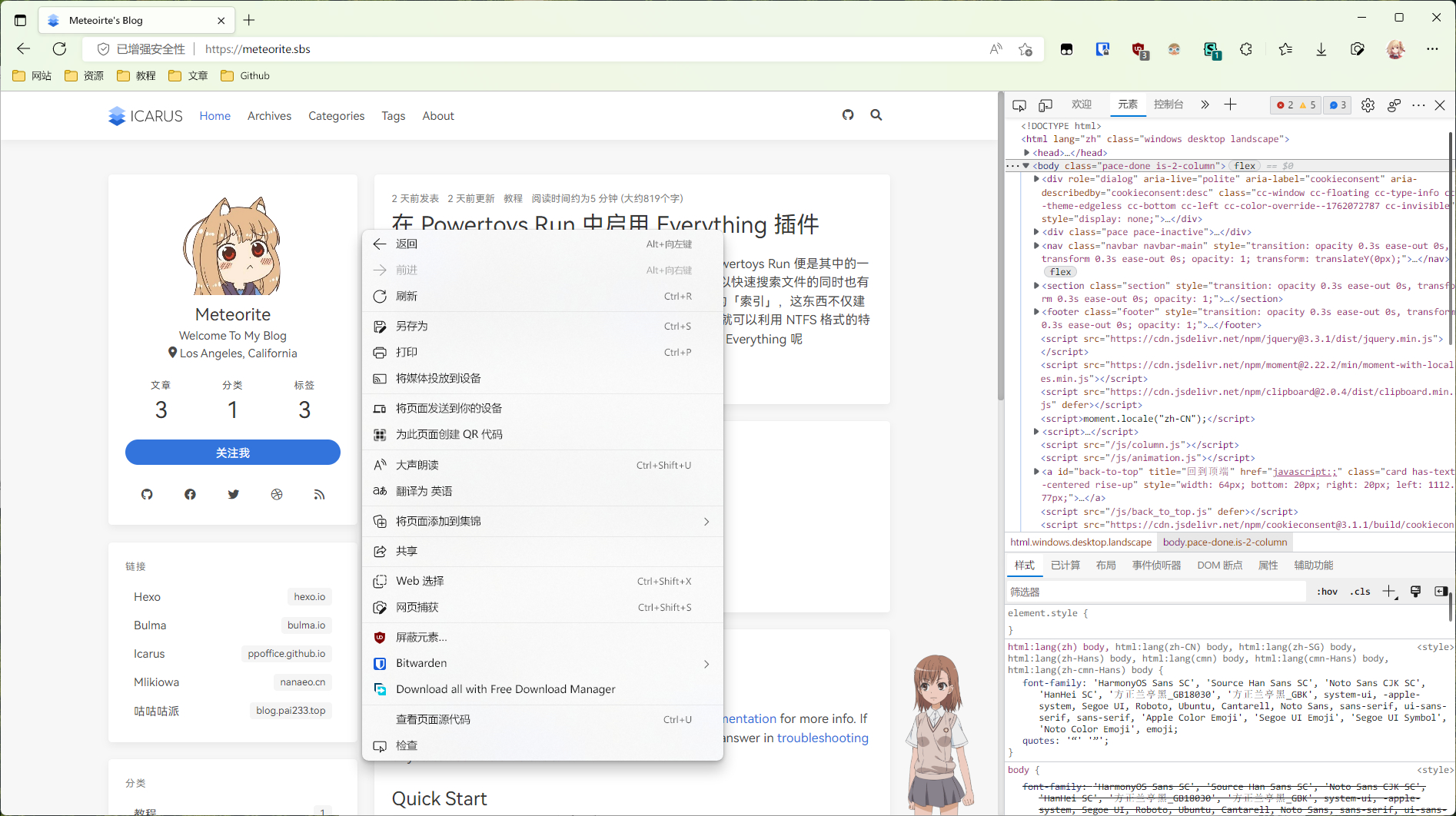
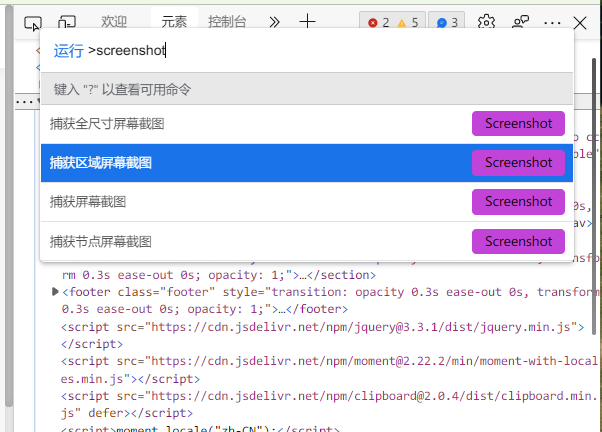
Press Ctrl+Shift+P, type Screenshot, then choose the capture mode you want. After a short wait, the screenshot is downloaded automatically.
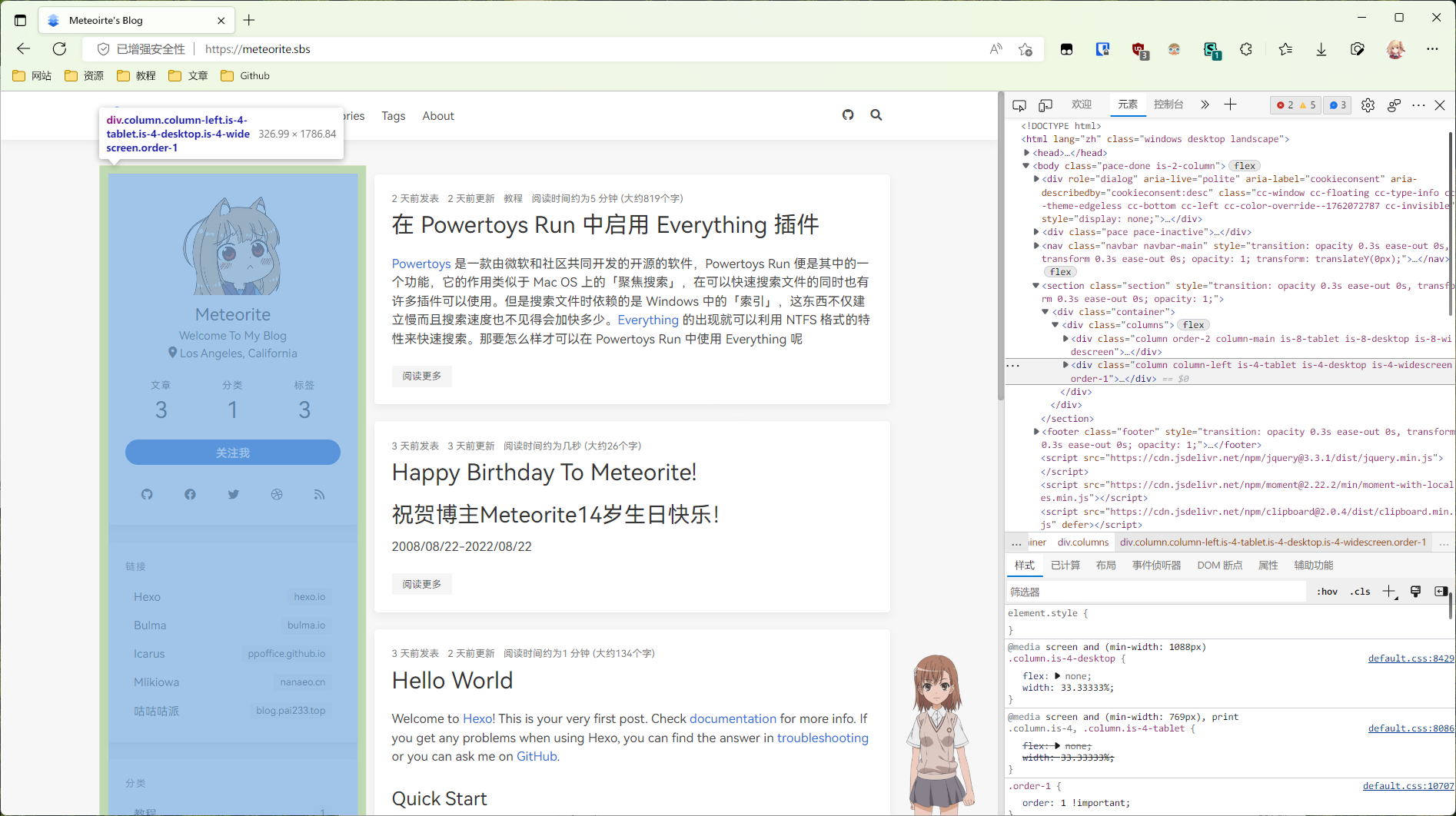
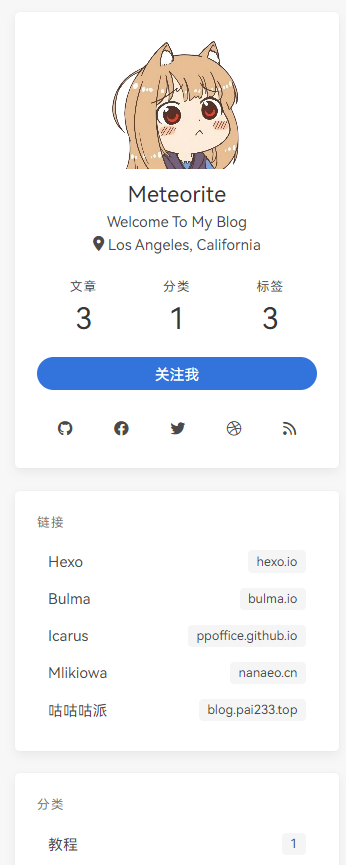
About Node Screenshot
Node Screenshot captures the specific
divselected in the Elements tab, so you can capture exactly what you want.
FireShot Plugin
Some people may say: “Your method above is still not fast enough. I need to open this, press that, type this… not convenient.”
That is easy to solve: install a plugin. FireShot works very well.
Download Links
After installing FireShot, find and open it from the browser menu at the top right.
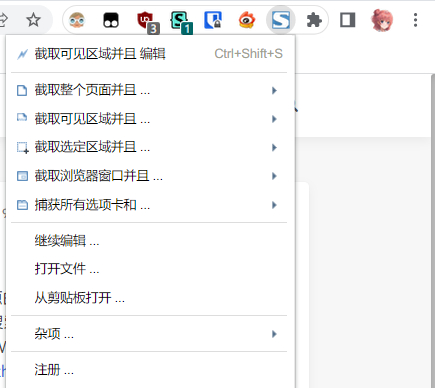
Now choose the screenshot mode you need.
After choosing a mode, a save window will pop up. You can choose how to save the screenshot there.
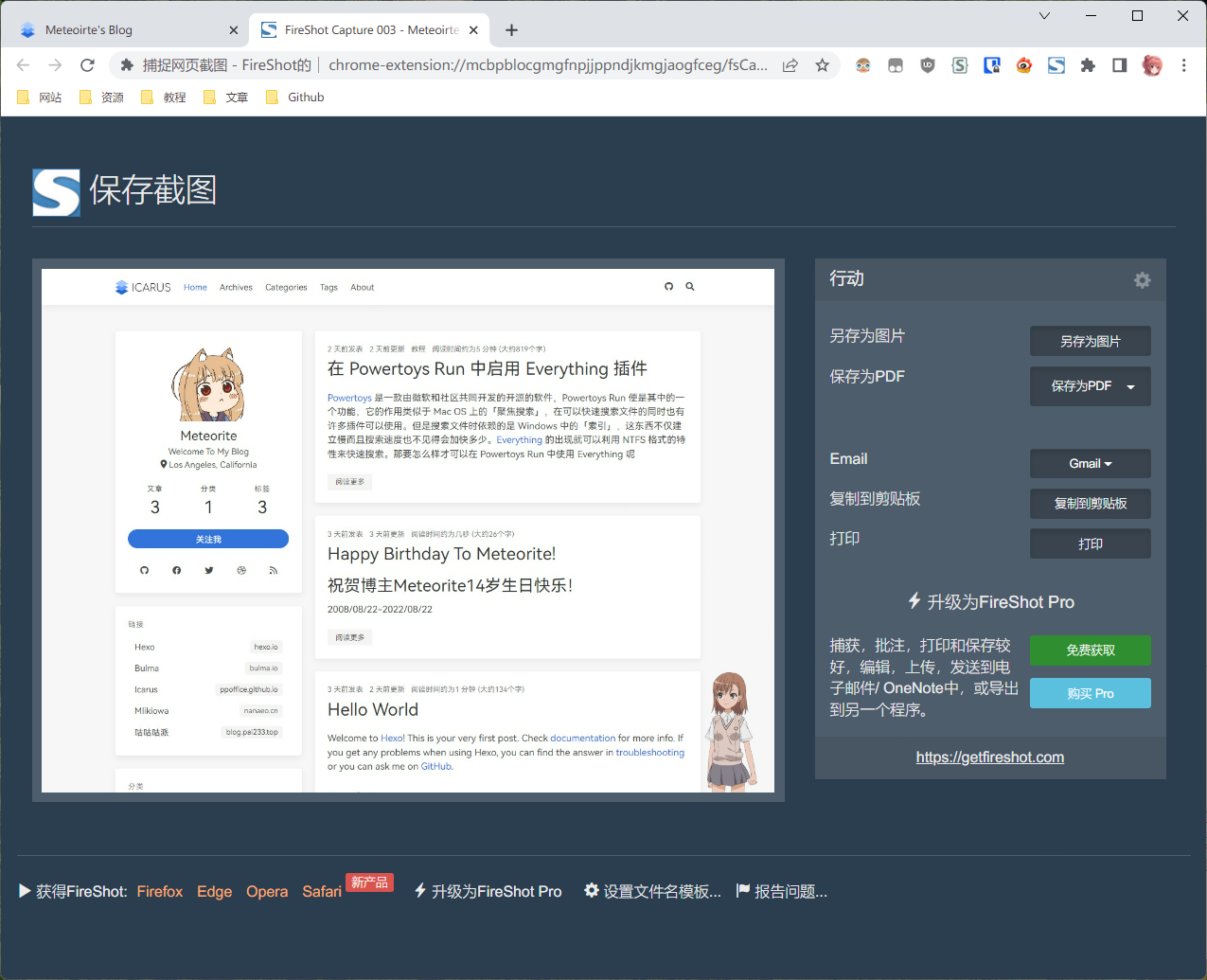
About FireShot Paid Features
The basic version is free and enough for screenshot capture. If you want to edit or annotate screenshots with FireShot’s built-in editor, there is a FireShot Pro upgrade option in the save window. I do not recommend upgrading: those extra functions can usually be done with built-in system tools. FireShot Pro has a 10-day free trial, then costs around 60 USD.